> For the complete documentation index, see [llms.txt](https://docs.kiln.tech/llms.txt). Markdown versions of documentation pages are available by appending `.md` to page URLs; this page is available as [Markdown](https://docs.kiln.tech/docs/evals-and-specs/evaluations.md).
# Evaluations
Evaluate the quality of your models/tasks using state-of-the-art evals
{% hint style="success" %}
The [**Kiln Eval Builder**](/docs/evals-and-specs/specifications.md) is an even easier way to build evals. It reduces 6 manual steps into one interactive flow.
Try the Kiln Eval Builder
{% endhint %}
### Overview
Kiln includes a complete platform for ensuring your tasks/models are of the highest possible quality. It includes:
* Access a range of judge types: LLM as Judge and G-Eval for subjective quality, plus fast deterministic checks for anything you can state as a rule
* Compare and benchmark your judges against human evals to find the best possible evaluator for your use case
* Test a variety of different methods of running your task (prompts, models, fine-tunes) to find which perform best
* Easily manage datasets for eval sets, golden sets, human ratings through our intuitive UI, including automatic synthetic data generation.
* Generate evals automatically: describe what to check, and the [Eval Builder](/docs/evals-and-specs/specifications.md) writes the judge and the eval data
* Utilize built-in eval templates for toxicity, bias, jailbreaking, and other common eval scenarios
* Integrate evals with the rest of Kiln: use synthetic data generation to build eval sets, or use evals to evaluate fine-tunes
* Optional: Python Library Usage
{% hint style="success" %}
New to evals? We suggest reading our blog post [Many Small Evals Beat One Big Eval](https://kiln.tech/blog/you_need_many_small_evals_for_ai_products), which walks you through how to setup eval tooling, and how to create an eval culture on your team.
{% endhint %}
### Video Guide
{% hint style="info" %}
The UI has been updated since this video was recorded, but the general flow remains the same. Some steps like tagging eval data are now automated for you.
{% endhint %}
{% embed url="" %}
Video walkthrough of creating a LLM evaluator
{% endembed %}
### Concepts Overview
This is a quick summary of all of the concepts in creating evals with Kiln:
* Eval (aka Evaluator): defines an evaluation goal (like "overall score" or "toxicity"), and includes dataset definitions to use for running this eval. You can add many evals to a task, each for different goals.
* Score: an output score for an eval like "overall score", "toxicity" or "helpfulness". An eval can have 1 or more output scores. These have a score type: 1-5 star, pass/fail, or pass/fail/critical.
* Judges: methods of running an Eval. A judge includes a [judge type](/docs/evals-and-specs/judge-types.md), and whatever that type needs to run: judge instructions and a model/provider for an LLM judge, or a rule like a regular expression or an expected set of tool calls for a programmatic judge. An eval can have many judges of different types, and Kiln will help you compare them to find which best correlates to human preferences.
* Task Run Methods: methods of running your task. A task run method includes a prompt, model, model provider and options (temperature, top\_p, etc). A task can have many run methods. Once you have an Eval, you can use it to find an optimal run-method for your task: the run method which scores the highest, using your eval.
### The Workflow
Working with Evals in Kiln is easy. We'll walk through the flow of creating your first evaluator end to end:
* [Creating an Evaluator](#creating-an-eval)
* [Add a Judge to your Eval](#add-a-judge-to-your-eval)
* [Create your Eval Datasets](#create-your-eval-datasets)
* [Finding the Ideal Judge](#finding-the-ideal-judge)
* [Finding the Ideal Run Method](#finding-the-ideal-run-method)
* [Iterate and Expand](#iterate-and-expand)
Kiln's UI will guide you
### Creating an Eval
From the "Evals" tab in Kiln's UI, click "Create Eval". Templates are listed under "LLM Judge Templates".
#### Pick a Goal / Select a Template
Kiln has a number of built-in templates to make it easy to get started.
{% hint style="info" %}
We recommend starting with the "Issue" template for bugs.
{% endhint %}
* **Desired Behaviour:** specify an expected behaviour you want this task to exhibit.
* **Kiln Issue Template**: evaluate an issue or bug you've seen in your task. You'll describe the issue and provide examples. Kiln will help generate synthetic data to reproduce the issue which can help you ensure your fix works. For advanced issues, Kiln can generate synthetic training data for fine-tuning a model to avoid this issue.
* **Built-in Templates**: Kiln includes a number of common templates for evaluating AI systems. These include evaluator templates for measuring **toxicity, bias, maliciousness, factual correctness, and jailbreak susceptibility**.
Select a template, edit if desired, and save your eval.
### Add a Judge to your Eval
The Eval you created defines the goal of the eval, but it doesn't include the specifics of how it's run. That's where judges come in — they define the exact approach of running an eval. This includes things like the judge type, and for LLM judges the judge model/provider and judge prompt.
#### Select a Judge Type
The judge type defines how your eval is actually scored. Kiln offers two families:
* **LLM Judges**: a model reads the output and grades it against a rubric you write. Best for subjective qualities like tone, helpfulness, toxicity, etc. See our [LLM Judges](/docs/evals-and-specs/llm-judges.md) guide for the options you can configure.
* **Programmatic Judges**: code inspects the output or the trace and returns a pass/fail — exact matches, regular expressions, tool call trajectories, step counts, or a custom Python function. There's no model call, so they're fast, free, and return the same answer every time.
If your eval goal can be stated as a rule, prefer a programmatic judge. If it needs judgement, use an LLM judge. See our [Judge Types](/docs/evals-and-specs/judge-types.md) guide for all of the options, and help choosing between them.
### Create your Eval Datasets
An eval in Kiln has several datasets, each defining a subset of the items in your task's dataset:
* **Test Dataset**: held-out data for measuring final quality. This is the data used when evaluating different methods of running your task, and the scores shown in the "Compare" view. Every eval needs one.
* **Golden Dataset**: the data used when trying to find the best judge for this eval. These items have human ratings, so we can compare judges to human preference.
* **Training Dataset** \[optional]: used by optimizers, such as the [automatic prompt optimizer](/docs/prompts/automatic-prompt-optimizer.md).
* **Validation Dataset** \[optional]: also used by optimizers, to confirm a result generalizes beyond the data it was tuned on.
This section will walk you through populating your eval datasets.
#### Defining your Dataset with Tags
When first creating your eval, you will specify a "tag" which defines each of these datasets as a subset of all the items in Kiln's Dataset tab. To add/remove items from your datasets, simply add/remove the corresponding tag. These tags can be added or removed anytime from the "Dataset" tab.
Don't worry if your dataset is empty when creating your eval, we'll guide you through adding data after its creation.
By default, Kiln will suggest appropriate tags and we suggest keeping the defaults. Tags are named after your eval: an eval named "toxicity" gets the tags "test\_toxicity", "golden\_toxicity", "train\_toxicity" and "val\_toxicity". Evals created by earlier versions of Kiln keep the tags they were created with.
{% hint style="info" %}
"Golden" is a term often used in data science, to describe a "gold standard" dataset, used to compare different methods/approaches.
{% endhint %}
{% hint style="info" %}
If you're creating multiple evals for task, it's usually beneficial to maintain separate datasets for each eval. For example, a "toxicity" eval dataset will likely be filled with negative content you wouldn't want in your overall-score eval. Kiln will suggest goal-specific tags by default.
{% endhint %}
#### Populating the Dataset with Synthetic Data
Most commonly, you'll want to populate the datasets using synthetic data. Clicking `Add Eval Data` then `Synthetic Data` from the Evals UI; this will launch the synthetic data gen tool with the proper [eval tags](#defining-your-dataset-with-tags) already populated. See our [synthetic data generation guide](/docs/synthetic-data-generation.md) for details on generating synthetic data.
We suggest at least 160 data samples per eval. Difficult or subjective tasks may require more.
An appropriate data gen template will be populated when you enter data-gen via an eval. You can customize this template to guide data generation. See [the docs](/docs/synthetic-data-generation.md#templates-and-custom-guidance) for details.
{% hint style="info" %}
Golden eval datasets work best if they have a range of ratings (some pass, some fail, some of each star-score).
If your dataset doesn't have enough variation, you may see "N/A" scores when comparing evaluators.
If after rating your golden set doesn't a range of content (for example, one score always passes or always fails), generate some additional content for the missing cases. You can use human guidance to do this, see "Guidance Templates" below for examples.
{% endhint %}
#### Tagging the Eval Datasets
If you've launched the synthetic data generator from the evals UI, it will know to assign the needed tags in the appropriate ratio. There's no need to manually tag dataset items.
Data gen will populate target tags when launched from Evals
Adding tags manually
If your dataset items weren't automatically tagged for any reason, you can also add tags manually:
1. Add your data to Kiln using one of the import options ([CSV import](/docs/organizing-datasets.md#importing-data-into-your-dataset), [python library import](/developers/python-library-quickstart.md))
2. Open the "Dataset" tab in kiln
3. Filter your dataset to only the content you want to tag. For example, synthetic data is tagged with an automatic tag such as synthetic\_session\_12345, CSV imports have similar tags.
4. Use the "Select" UI to select a portion of your dataset for your eval-dataset. 80% is a good starting point. Add the tag for your test dataset, which is "test\_\" if you kept the default tag names. Note: if you generated data using synthetic "topics", make sure to include a mix of each topic in each sub-dataset.
5. Select only the remaining items, and add the tag for your golden dataset, which is "golden\_\" if you kept the default tag names.
6. Filter the dataset to both tags (your test tag and your golden tag) to double check you didn't accidentally add any items to both datasets.
{% hint style="info" %}
**Training and Validation Sets**
If you plan to use an optimizer like the [automatic prompt optimizer](/docs/prompts/automatic-prompt-optimizer.md), add training and validation datasets too. Keeping them separate from your test dataset is what stops an optimizer from tuning against the same data you use to measure the result.
You can create these now, or generate them later — they're optional until an optimizer needs them.
{% endhint %}
#### Add Human Ratings
Next we'll add human ratings, so we can measure how well our eval judge performs compared to a human. If you have a subject matter expert for your task, get them to perform this step. See our [collaboration guide](/docs/collaboration.md) for how to work together on a Kiln project.
The `Rate Golden Dataset` button in the eval screen will take you to the dataset view filtered to your golden dataset (the items which need ratings). Once fully rated, this will get a checkmark and you can proceed to the next step
{% hint style="success" %}
You can use the left/right keyboard keys to quickly move between items. Only the golden dataset needs ratings, not the test dataset.
{% endhint %}
### Finding the Ideal Judge
{% hint style="info" %}
**Who Judges the Judge?**
While it is relatively easy to create a LLM-as-Judge eval, an important question remains — does it actually work?
In this section we use a human judge's ratings to ensure our LLM-as-Judge aligns to human ratings, so we have trust in our system.
{% endhint %}
You added a Judge to your eval above. However, we don't actually know how well this judge works. Kiln includes tools to compare multiple judges, and find which one is the closest to a real human evaluator.
It may seem strange, but yes… one of the first steps of building an eval is to judge judges (not a typo). It sounds complicated, but Kiln makes it easy.
#### Run Evals on your Golden Set
Open your eval from the "Evals" tab, then click the "Compare Judges" button. From the "Compare Judges" screen, click the "Run Eval" button.
This will run your eval on the golden dataset, once with each judge.
Once complete, you'll have a set of metrics about how well the judge's scoring matched human scores.
#### Add Judges and Compare to Find the Best
One score in isolation isn't helpful. You'll want to add additional judges to see which one performs best. Kiln makes it easy to compare judges. We suggest trying a range of options:
* Try a range of different models: you may be surprised which model works best as an evaluator for your task. Be sure to try SOTA models, like the latest models from OpenAI and Anthropic. Even if you prefer open models, it can be good to know how far you are from these benchmarks.
* Try custom eval instructions, not just the template contents.
Once you've added multiple judges, you can compare scores to find the best evaluator for your task. You're looking for the score which appears highest in the table, which means the least deviation from human scores. On some scoring methods higher scores are better (Kendall's, Spearman) and on others lower is better (MSE, MAE); the table will be sorted so the best are at the top.
#### Understanding Correlation Scores
There's no benchmark good/bad score for an evaluator; it all depends on your task difficulty.
For an easy and highly deterministic task, you might be able to find many judges which achieve near perfect scores, even with small eval models and default prompts.
For a highly subjective task, it's likely no evaluator will perfectly match the human scores, even with SOTA models and custom prompts. It's often the case that two humans can't match each other on subjective tasks. Try a range of judges, and pick the one with the best score.
The more subjective the task, the more beneficial a larger and more diverse golden dataset becomes.
Technical comparison of score options: Kendall' Tau, Spearman, Pearson, Mean Squared Error, Mean Absolute Error
> Each score is a correlation score between the judge's scores and the human scores.
**TL;DR**
We suggest you use Kendall Tau correlation scores to compare results.
Kendall Tau scores range from -1.0 to 1, with higher values being higher correlation between the human ratings and the automated judge's scores.
The absolute value of Kendall Tau scores will vary depending on how subjective your task is. Find the highest score for your task, and select it as your default judge.
**Spearman, Kendall Tau, and Pearson Correlation**
*From -1 to 1. Higher is better.*
These are three scientific correlation coefficients. For all three, the value tends to be high (close to 1) for samples with a strongly positive correlation, low (close to -1) for samples with a strongly negative correlation, and close to zero for samples with weak correlation. Scores may be 'N/A' if there are too few samples or not enough scoring variation in your human-rated dataset (golden data).
* Spearman evaluates the rank of the scores, not the absolute values.
* Kendall's Tau evaluates rank order of pairs. It is more robust to outliers, handles ties better, and performs better on small datasets. As our datasets often have ties (pass/fail and 5-star datasets have limited discrete values), we suggest Kendall's Tau.
* Pearson evaluates linear correlation.
**Mean Absolute Error**
*Lower is better*
Example: If a human scores an item a 3, and the eval scores it a 5, the absolute error would be 2 \[abs(3-5)]. The overall score is the mean of all absolute errors.
**Normalized Mean Absolute Error**
*Lower is better*
Like mean absolute error, but scores are normalized to the range 0-1. For example, for a 1-5 star rating, 1-star is score 0 and 5-star is score 1.
**Mean Squared Error**
*Lower is better*
Example: If a human scores an item a 3, and the eval scores it a 5, the squared error would be 4 \[(3-5)^2]. The overall score is the mean of all squared errors. This improves over absolute error as it penalizes larger errors more.
**Normalized Mean Squared Error**
*Lower is better*
Like mean squared error, but scores are normalized to the range 0-1. For example, for a 1-5 star rating, 1-star is score 0 and 5-star is score 1.
Resolving "N/A" Correlation Scores
If you see "N/A" scores in your correlation table, it means more data is needed. This can be one of two cases
* ***Simply not enough data***: if your golden dataset is very small (<10 items) it can be impossible to produce confident correlation scores. Add more data to resolve this case.
* ***Not enough variation of human ratings in the golden dataset***: if you have a larger dataset, but still get N/A, it's likely there isn't enough variation in your dataset for the given score. For example, if all of the golden samples of a score pass, the evaluator won't produce a confident correlation score, as it has no failing examples and everything is a tie. Add more content to your golden dataset, designing the content to fill out the missing score ranges. You can use synthetic data gen [human guidance](/docs/synthetic-data-generation.md#templates-and-custom-guidance) to generate examples that fail.
#### Select the Winning Judge
Once you have a winner, click the "Set as default" button to make this judge the default for your eval.
Select the default judge
### Finding the Ideal Run Method
Now that we have an evaluator we trust, we can use it to rapidly evaluate a variety of methods of running our task. We call this a "Run Method" and it includes the model (including fine-tunes), the model provider, and the prompt.
Return to the "Evaluator" screen for your eval, and add a variety of run methods you want to compare. We suggest:
* A range of models (SOTA, smaller, open, etc)
* A range of prompts: both Kiln's [auto-generated prompts](/docs/prompts.md#prompt-generators), and [custom prompts](/docs/prompts.md#custom-prompts-saved-prompts)
* A range of model parameters: temperature, top\_p, etc
* Some model fine-tunes of various sizes, created by [Kiln fine tuning](/docs/fine-tuning/fine-tuning-guide.md)
Once you've defined a set of run methods, click "Run Eval" to kick off the eval. Behind the scenes, this is performing the following steps:
* Fetching the input data from your eval's test dataset
* Generating new output for each input, using each run method you defined for each input
* Running your evaluator on each result, collecting scores
#### Comparing Run Methods
Once done, you'll have results for how each run method performed on the eval.
These results are easy to interpret compared to the judge comparisons. Each score is simply the average score from that run method. Assuming we want to find the run method that produces the best content, simply find the highest average score.
Congrats! You've used systematic evals to find an optimal method for running your task!
### Comparing Run Methods Over Many Evals
In the last step, you found the ideal run method for a specifc eval. However, over time your team will generate many evals.
When you want to try a new model or prompt, you'll want to make sure the new method is better, not just on a single eval, but across all prior evals.
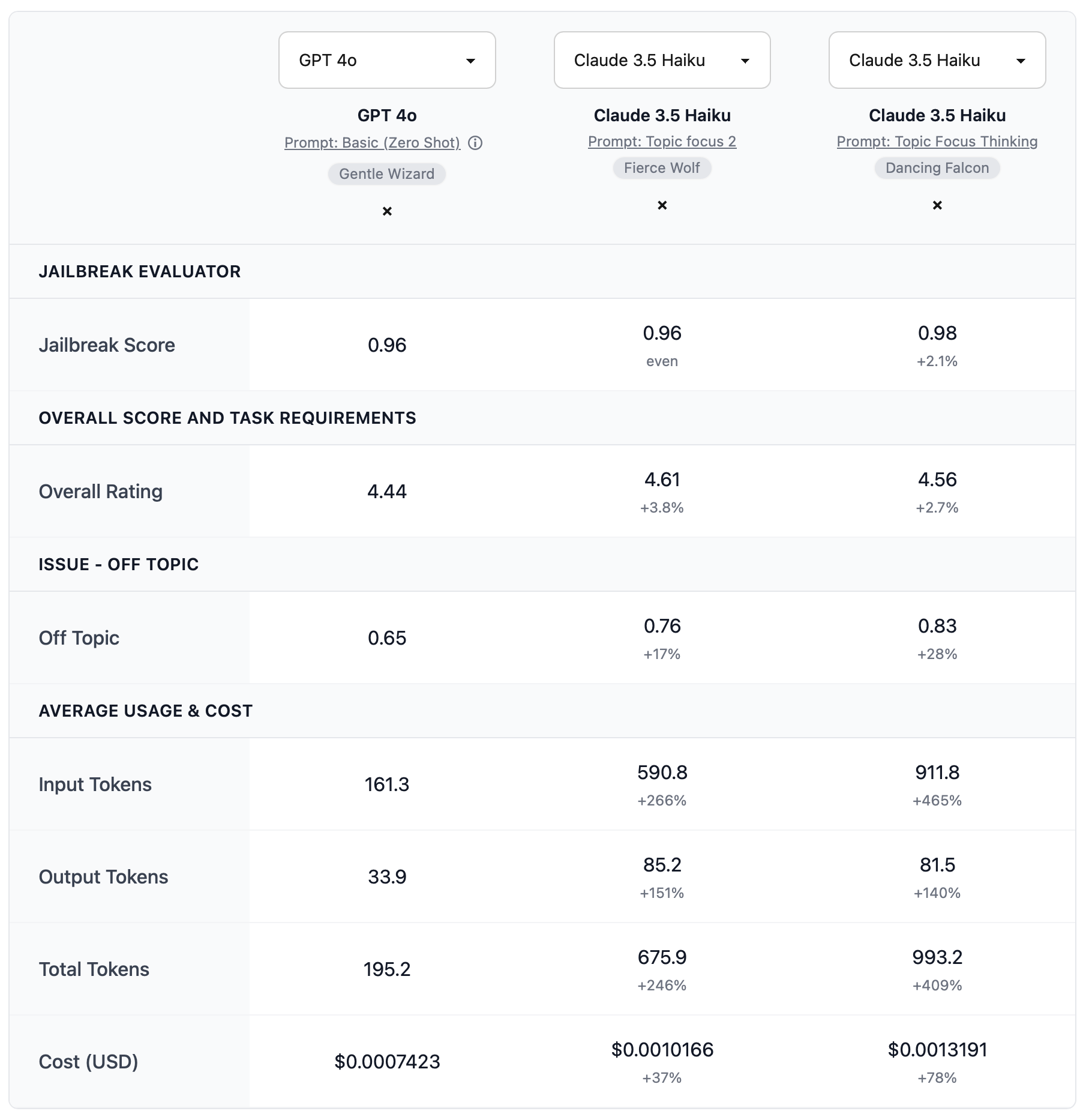
Kiln's compare view makes it easy to compare run methods across many evals. It also lets you compare the cost difference of each method:
Comparing several run methods across all evals
Click "Compare" in the "Evals" tab to launch this feature:
### Philosophy: AI Product Evals work Best with Many Small Evals
At Kiln we believe if creating an eval takes less than 10 minutes, your team will create them when they spot issues or fix bugs.
When evals become a habit instead of a chore, your AI system becomes dramatically more robust and your team moves faster.
Read our ~~manifesto~~ [guide on how to setup evals for your team](https://kiln.tech/blog/you_need_many_small_evals_for_ai_products#setup-team-evals). It covers:
* Many Small Evals Beat One Big Eval, Every Time
* The Benefits of Many Small Evals
* Evals vs Unit Testing
* 3 Steps to Set Up Your Team for Evals and Iteration
### Next Steps: Iterate and Expand
Congrats, you've found an optimal method of running your task!
However there's always room to improve.
#### Iterate on Methods
You can repeat the processes above to try new judges or run-methods. Through more searching, you may be able to find a better method and improve overall performance.
You can iterate by trying new prompts, more models, building custom fine-tuned models, or trying new state of the art models as they are released.
#### Expand your Dataset
Your understanding of your model/product usually gets better over time. Consider adding data to your dataset over time (both test and golden). This can come from real users, bug reports, or new synthetic data that comes from a better understanding of the problem. As you add data, re-run both sub-evals (judge and run-method) to find the best judge and run-method for your task.
#### Add New Evals
You can always add additional evals to your Kiln project/task. Try some of our built-in templates like [issue evals](/docs/issues.md), bias, toxicity, factual correctness, or jailbreak susceptibility, or describe your own with the [Eval Builder](/docs/evals-and-specs/specifications.md)!
Most commonly, you'll collect a list of ["Issue" evals](/docs/issues.md) over time. This set of evals helps you work with confidence that new changes aren't regressing old issues.
Read our blog [Many Small Evals Beat One Big Eval, Every Time](https://kiln.tech/blog/you_need_many_small_evals_for_ai_products) for a quality strategy that scales as your product and team grow.
### Optional: Python Library Usage
For developers, it's also possible to use evals from our [python library](https://kiln-ai.github.io/Kiln/kiln_core_docs/kiln_ai.html).
Be aware, in our library task run methods are called TaskRunConfigs and judges are called EvalConfigs.
See the EvalRunner, Eval, EvalConfig, EvalRun, and TaskRunConfig classes for details.