> For the complete documentation index, see [llms.txt](https://docs.kiln.tech/llms.txt). Markdown versions of documentation pages are available by appending `.md` to page URLs; this page is available as [Markdown](https://docs.kiln.tech/docs/prompts.md).
# Prompts
How to use our prompt optimizer, prompt generators, or create your own prompt
Kiln offers several methods to build and manage prompts
* [Automatic Prompt Generator](/docs/prompts/automatic-prompt-optimizer.md): Our state-of-the-art automatic prompt optimizer. We run iterative experiments and use evals to pinpoint and fix failure modes — **no manual prompting required**.
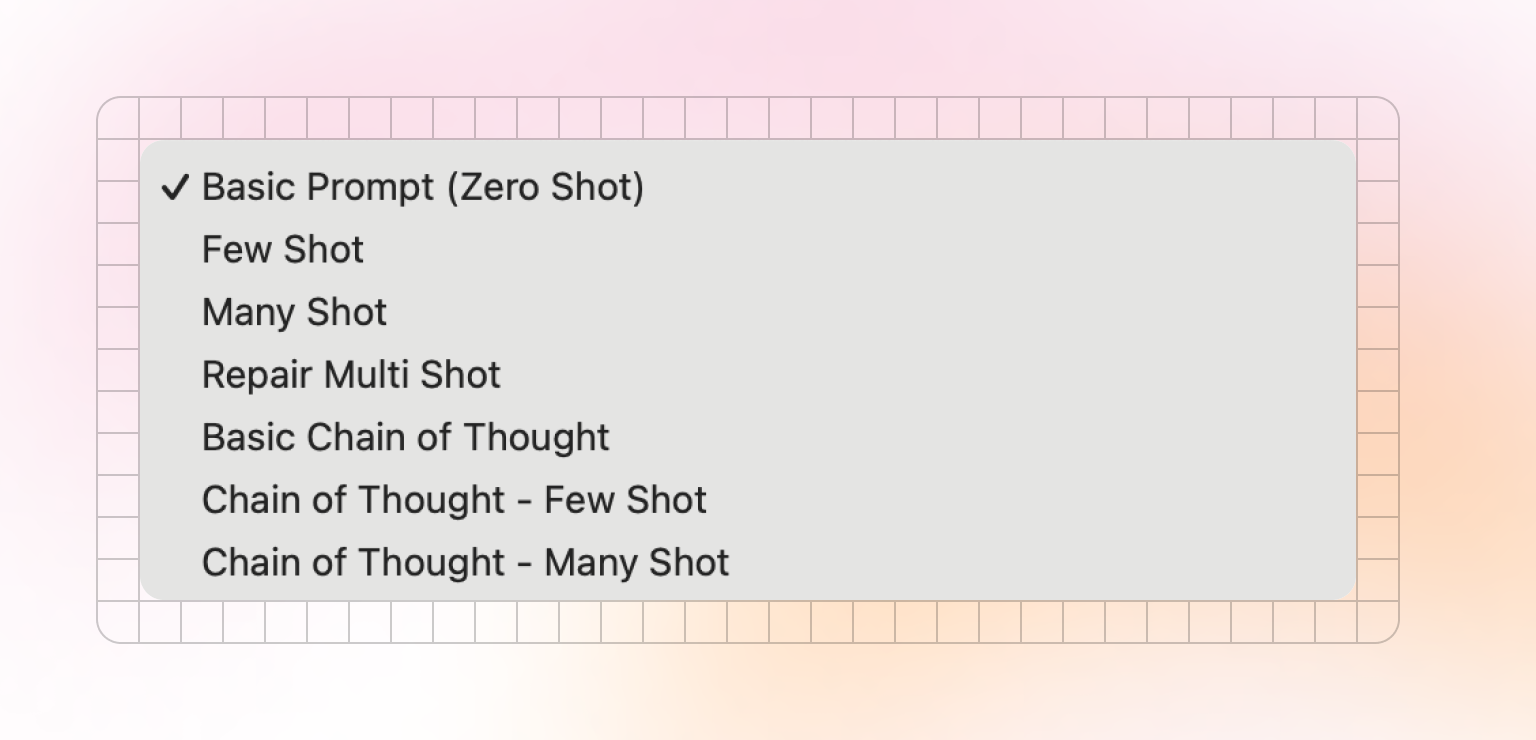
* [Prompt Generators](#prompt-generators): Kiln can automatically generate many popular prompt styles from your task and dataset (few-shot, many-shot, chain of thought, chain of thought multi-shot, and more). The more you use your task, and rate the results, the richer your prompts become.
* [Custom Prompts](#custom-prompts): manually create, save and share any prompt.
## Viewing, Managing & Sharing Prompts
The "Prompts" tab in the UI lets you see and manage all of the prompts for the currently selected task.
* Create a new prompt
* View saved prompts
* Manage prompts (rename, delete)
* View prompt generators
Anyone you [collaborate](/docs/collaboration.md) with will automatically have access to the same set of prompts.
## Prompt Fields
When creating a new prompt, there are several fields:
* Name: a name for you and your team to identify this prompt. Not used by the model.
* Prompt (aka System Message): The core of your prompt. Will be passed to the model as a system message before any user data is sent.
* Chain of thought instructions: if provided, using this prompt will add an extra "thinking"/reasoning phase to its execution. These instructions guide how the model should "think" about the problem before answering. See [docs on Chain of Thought and Thinking](/docs/reasoning-and-chain-of-thought.md#chain-of-thought-call-flow-non-reasoning-model) for details.
## Using Prompts
You can select any available prompt or prompt generator from the prompt dropdown:
Select a Prompt
{% hint style="info" %}
You can start typing to filter this list, which can make it easy to find a prompt by name.
{% endhint %}
## When to Use Each Type of Prompt
Ultimately it's up to you when to use each style. The best approach varies from task to task, and model to model.
It's worth evaluating a range of prompt/model pairs to find one that works best for your task, while considering speed/cost tradeoffs of longer prompts and larger models. [Kiln Evals](/docs/evals-and-specs.md) give you a scientific way to find the best prompt for your task.
{% hint style="success" %}
**LLMs are often better at writing prompts than humans.** Given a good evaluator, they can test hundreds of unique prompts on thousands of test cased to find the ideal prompt.
**Try our** [**automatic prompt optimizer**](/docs/prompts/automatic-prompt-optimizer.md) to find the best prompt for your task, using evals.
{% endhint %}
#### Don't Assume the Same Prompt Will Work on Every Model
Different models will interpret a prompt differently. You may need to re-optimize your prompt when changing or upgrading your model.
#### Prompts for Fine Tuning
If fine-tuning we generally suggest a tiered approach:
* For generating training data: use a long/powerful prompt like "Chain of Though - Few Shot", on a powerful model (GPT, Claude, Deepseek).
* When building fine-tunes, try a range of included prompts, including the original prompt used when generating training data, the "Basic (Zero Shot)", and an even shorter custom fine-tune prompt. Also include a range of models and model sizes in your search (llama 1b, 3b, 8b, 70b, etc).
* Evaluate the resulting models. See if the longer prompts are necessary. It's possible the very short prompts will perform well after fine-tuning, which improves speed and lowers costs.
* Read more guidance from [OpenAI](https://platform.openai.com/docs/guides/fine-tuning#crafting-prompts)