> For the complete documentation index, see [llms.txt](https://docs.kiln.tech/llms.txt). Markdown versions of documentation pages are available by appending `.md` to page URLs; this page is available as [Markdown](https://docs.kiln.tech/docs/tools-and-mcp/connect-to-existing-agents.md).
# Connect to Existing Agents
You can connect Kiln Evals to existing agents on any platform, using MCP
If you've already built an agent using another platform, you can still use Kiln to evaluate and optimize your system!
### Step 1: Expose your Existing Agent as an MCP Server
Wrap your existing agent in an [MCP server](https://modelcontextprotocol.io/docs/getting-started/intro), so Kiln can call it. You can use any library, framework, or programming language.
Exactly how to do this will depend on how you implemented your existing agents, but every major programming language has an MCP library for wrapping existing functions as MCP servers:
* [Python](https://github.com/modelcontextprotocol/python-sdk?utm_source=chatgpt.com)
* [Javascript/Typescript](https://github.com/modelcontextprotocol/typescript-sdk?utm_source=chatgpt.com)
* [Go](https://github.com/modelcontextprotocol/go-sdk)
* [Rust](https://github.com/modelcontextprotocol/rust-sdk?utm_source=chatgpt.com)
* [Java](https://github.com/modelcontextprotocol/java-sdk)
* [More](https://github.com/modelcontextprotocol)
### Step 2: Connect Your MCP Server to Kiln
Follow [our instructions](/docs/tools-and-mcp.md#connecting-tools) to connect your MCP server to Kiln.
### Step 3: Connect an MCP Tool to a Kiln Task
A "task" in Kiln represents a unit of work an agent can do. It has a specific input/output schema, and may have a collection of evals to measure quality. There are a number of ways to connect an MCP tool to your Kiln tasks.
#### Option 1: Create a New Kiln Task From an MCP Tool
The easiest way is to create a new task from your MCP tool signature. It will create a new task with the exact same input and output schema as your MCP tool.
This is the preferred option if you're just getting started and don't already have evals created for an existing task. However, if you already have evals and Kiln agents, you'll probably want to use Option 2 or Option 3.
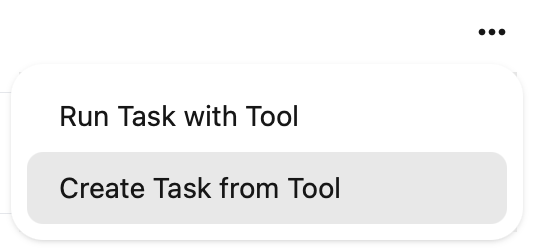
To create a new task from a tool, click `Settings > Manage Tools > Tool Server > Individual Tool > [...] Menu > Create Task from Tool`.
#### Option 2: Use a Wrapper Agent
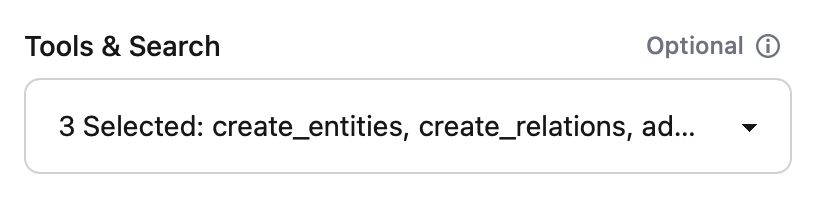
Any existing Kiln task can call your MCP tools. You can give your existing agents in Kiln access to your external MCP tools by selecting them in the `Tools & Search` dropdown on the run screen.
This is a great approach if your task's input/output schemas doesn't exactly match your tool's input/output schemas. The wrapping LLM agent can follow instructions, and call the tool with the needed parameters.
#### Option 3: Connect an MCP Tool to an Existing Task
If you have an existing Kiln task and want to use Kiln to compare multiple methods of running your task (MCP tools, Kiln agents), you can connect your MCP tool to an existing task as a "Run Configuration". Run configurations describe how to run a specific task. For an agent, it's typically fields like model, system prompt, and LLM parameters; however, a run configuration can also point to any MCP server.
{% hint style="info" %}
The input/output signature of your MCP tool **must exactly match** the input/output signature of your Kiln task, or you won't be able to directly connect a task to an MCP tool.
If it doesn't match, we suggest either using a wrapper agent (option 2) or modifying the MCP tool's schema to align to your task.
{% endhint %}
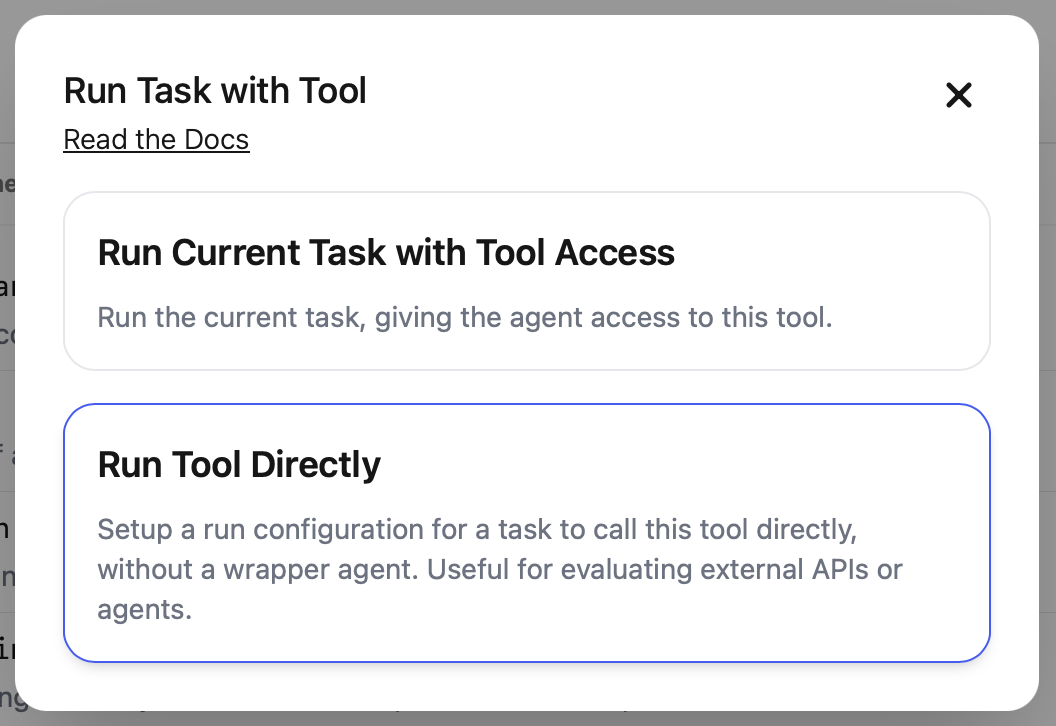
To connect an MCP tool to an existing task, click `Settings > Manage Tools > Tool Server > Individual Tool > [...] Menu > Run Task with Tool > Run Task Directly`.